IPTV setup guide for Firestick, Smart TV and Android
Choose your device and follow the IPTV setup steps for your app, username, password and server URL.
You need 3 things from your IPTV order email: username, password and server URL.
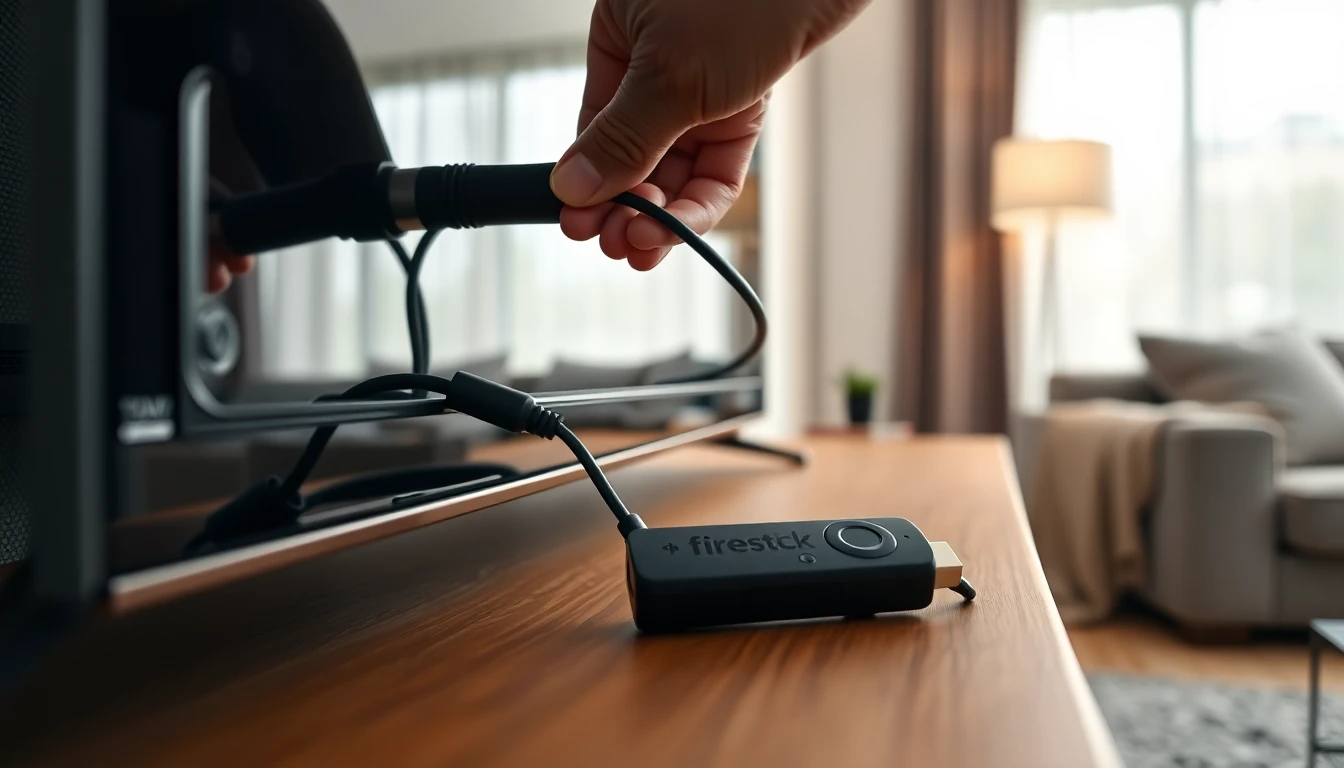
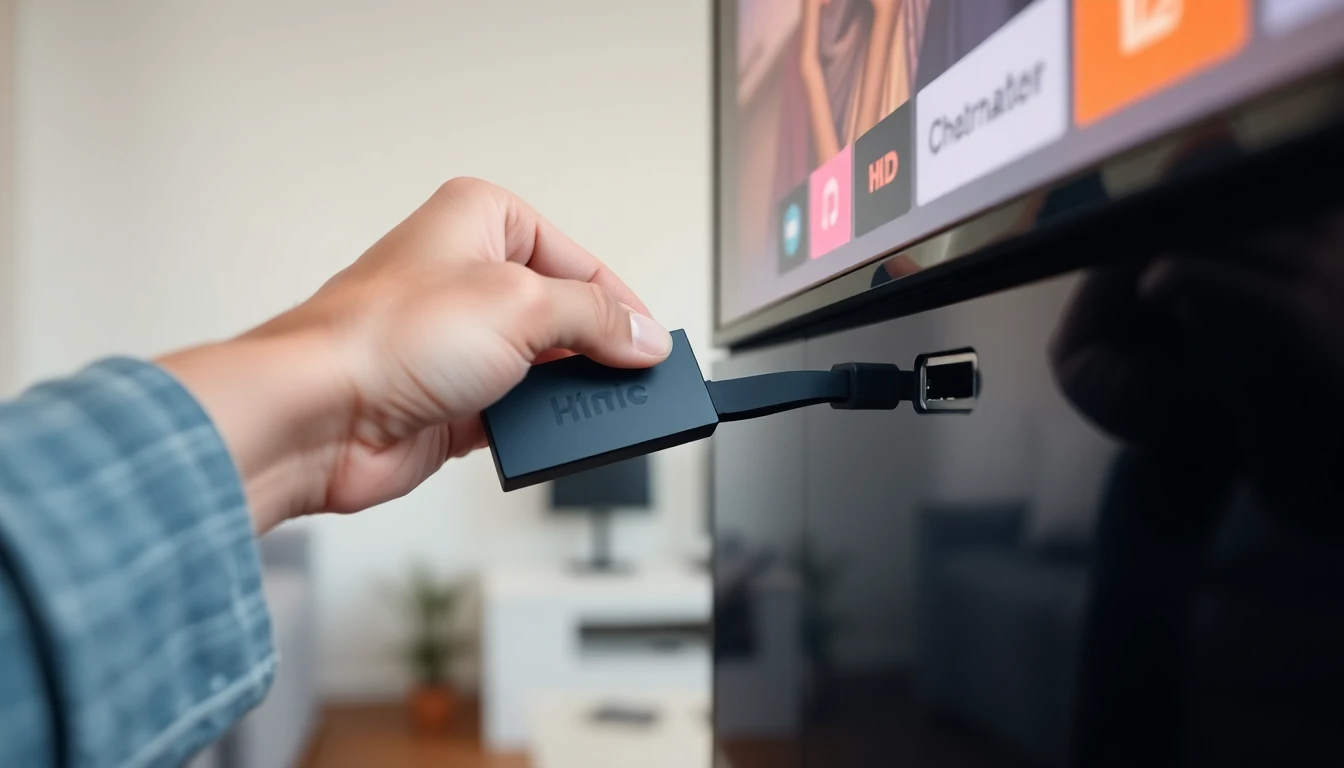
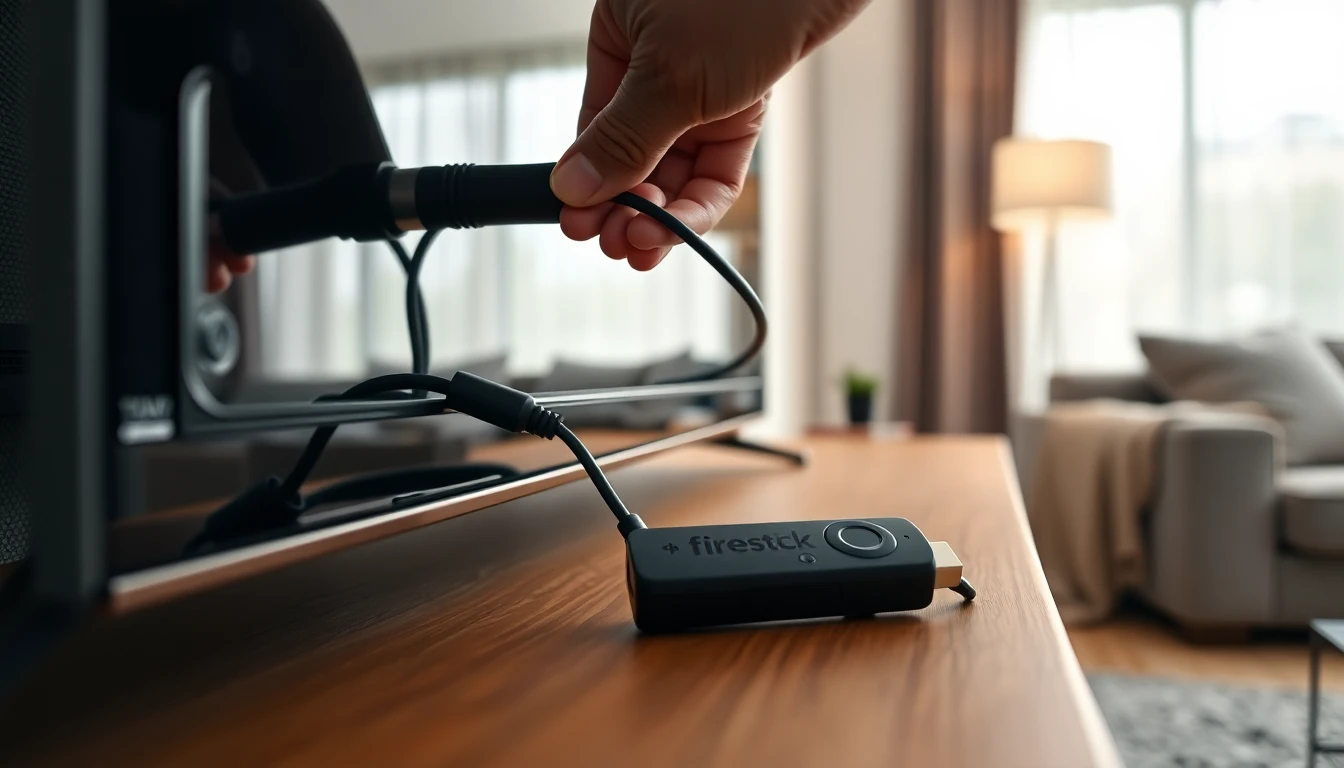
Amazon Firestick IPTV setup
IPTV Smarters Pro · TiviMateGo to Settings → My Fire TV → Developer Options and turn on "Install unknown apps".
From the Amazon App Store, search for "Downloader" and install it.
Open Downloader, enter our app link and download your IPTV player.
Launch the player and choose "Login with Xtream Codes API".
Enter the username, password and server URL we sent you.
Wait for the channel list to load, then start streaming.
Android TV / Box IPTV setup
IPTV Smarters Pro · TiviMateOpen the Google Play Store on your Android TV or box.
Install "IPTV Smarters Pro" or "TiviMate".
Launch the app and choose "Login with Xtream Codes API".
Enter your username, password and server URL.
Channels load automatically — start watching.
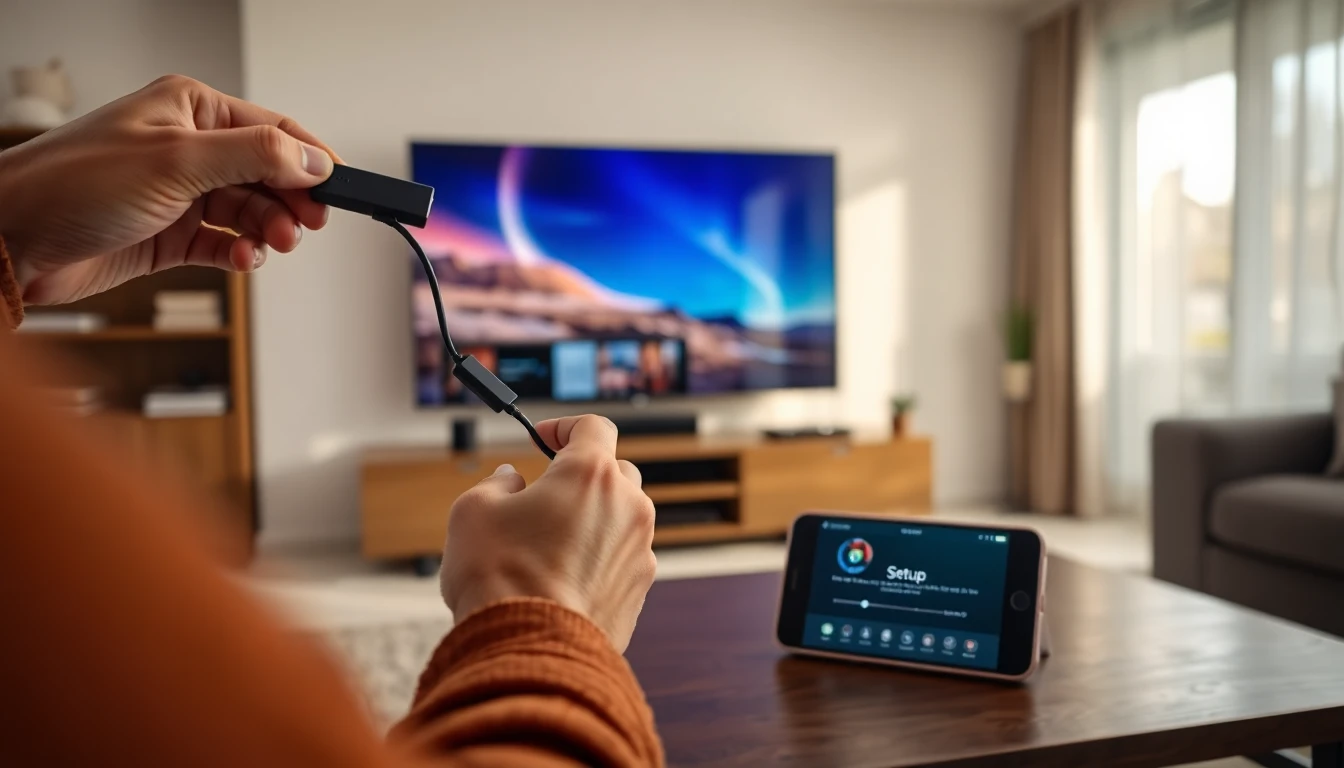
Smartphone & Tablet IPTV setup
IPTV Smarters · GSE Smart IPTVOn the Play Store (Android) or App Store (iPhone/iPad), install "IPTV Smarters" or "GSE Smart IPTV".
Open the app and accept the terms of use.
Tap "Add User" → "Login with Xtream Codes API".
Enter the username, password and server URL from your email.
Stream live TV, movies and series on the go.
Smart TV IPTV setup
IPTV Smarters · Smart IPTVOpen your TV app store (Samsung / LG / Sony) and install "IPTV Smarters" or "Smart IPTV".
Launch the app and select "Xtream Codes API".
Enter the credentials we sent — or, for Smart IPTV, send us the MAC address shown.
Connect and browse the organized channel categories.
Laptop / PC / Mac IPTV setup
IPTV Smarters · VLCDownload IPTV Smarters desktop, or install VLC from videolan.org.
In IPTV Smarters, choose "Xtream Codes API" and enter your credentials.
In VLC, open Media → Open Network Stream and paste the M3U URL we provide.
Play and enjoy live TV and VOD on your computer.
Web Browser IPTV setup
No install neededOpen our web player link in any modern browser.
Enter your Xtream username, password and server URL.
Click login to connect to your subscription.
Stream your channels and movies straight in the browser.
Troubleshooting
- Use a stable connection: 10 Mbps or more for HD and 25 Mbps or more for 4K. Wired Ethernet is most stable.
- Type your username, password and server URL exactly as we sent them.
- Buffering or freezing? Restart the app and your device, then try again.
- Black screen with audio? Update the IPTV app to the latest version.
- Channels or EPG not loading? Re-enter the Xtream login or clear the app cache.
- Setup usually takes 5 to 10 minutes. Message us on WhatsApp if you get stuck.
Download Hot Player on firestick
1. Download Downloader app
- On your Firestick home screen, go to the Search option and type Downloader.
- Select the app from the results, click Download, and wait for it to install.
- Once installed, it’s ready to use.
2. Enable Developer Options.
- Go to settings
- Go to my Fire TV
- Select About.
- Click on Fire TV Stick 4K seven times in a row to unlock Developer Options.
- Go back one step and open Developer Options.
- Press on Developer options
- Find Apps from Unknown Sources or Install Unknown Apps.
- Turn Downloader to ON.
3. Download Hot Player
- Return to the Firestick home screen and open Downloader.
- When prompted, select Allow.
- In the search field, enter the code 127238.
- Press Go to start downloading the Hot Player app automatically.
- When the app downloaded successfully, press on done button
4. Set Up Hot Player
Open the Hot Player app.
Copy the MAC Address displayed on your screen.
Send this MAC Address to us via WhatsApp, Email, or Telegram.
Once we receive it, we will activate your subscription.
After activation, you can to start watching.
Install Hot Player on iOS Devices
1. Download Hot Player from the App Store.
- Open the App Store on your iPhone or iPad.
Use the search bar to look for Hot Player.
Download the app and open it once installation is complete.
2. Set Up Hot Player
Inside the app, copy the MAC Address displayed on your screen.
Send this MAC Address to us via WhatsApp, Email, or Telegram.
Once we receive it, we will activate your subscriptio
Install Hot Player on Android Devices
1. For Android Phone.
Download the app directly using the provided button.
- Once the download is complete, install and open the app.
2. For Android TV.
- Open the Google Play Store and search for Downloader.
- Install and open Downloader.
- Turn on
- Allow
- In the search field, enter the code 127238.
- Press Go to start downloading Hot Player automatically.
- Once the download finishes, click Done.
3. Set Up Hot Player.
Open the Hot Player app.
Copy the MAC Address shown on your screen.
Send this MAC Address to us via WhatsApp, Email, or Telegram.
Once we receive it, we will activate your subscription.
Install Hot Player on Windows Devices
1. Download from Microsoft Store
Open the Microsoft Store on your Windows PC or laptop.
Search for Hot Player in the search ba
You can also download it directly using the provided button.
- Once the download is complete, install and open the app.
2. Set Up Hot Player
Inside the app, copy the MAC Address displayed on your screen.
Send this MAC Address to us via WhatsApp, Email, or Telegram.
Once we receive it, we will activate your subscription.
Install Hot Player on Samsung TV
1. Download from Samsung TV App Store
- On your Samsung TV, open the Apps store.
- Click on the Search icon
- Type Hot IPTV or Hot Player in the search bar.
- Download and install the app on your TV.
2. Set Up Hot Player.
Open the Hot Player app on your Samsung TV.
Copy the MAC Address displayed on your screen.
Send this MAC Address to us via WhatsApp, Email, or Telegram.
Once we receive it, we will activate your subscription.
Install Hot Player on LG TV
1. Download from LG Content Store
- On your LG Smart TV, open the LG Content Store (Apps store).
- Click on the Search icon.
- Type Hot IPTV or Hot Player in the search bar.
- Download and install the app directly on your TV.
2. Set Up Hot Player
Open the Hot Player app after installation.
Copy the MAC Address that appears on the screen.
Send this MAC Address to us via WhatsApp, Email, or Telegram.
Once we receive it, we will activate your subscription.
Add Portal Link (For STB or Portal-Based Apps)
- You will be provided with a link when you pay on email
- Open portal option
- Write the portal link in second option and give it name in first option and done